> ## Documentation Index
> Fetch the complete documentation index at: https://relevanceai-docs-consolidate-task-grouping.mintlify.site/llms.txt
> Use this file to discover all available pages before exploring further.
# Task Operations
> Monitor, troubleshoot, and resolve Agent and Workforce Tasks in bulk from one place
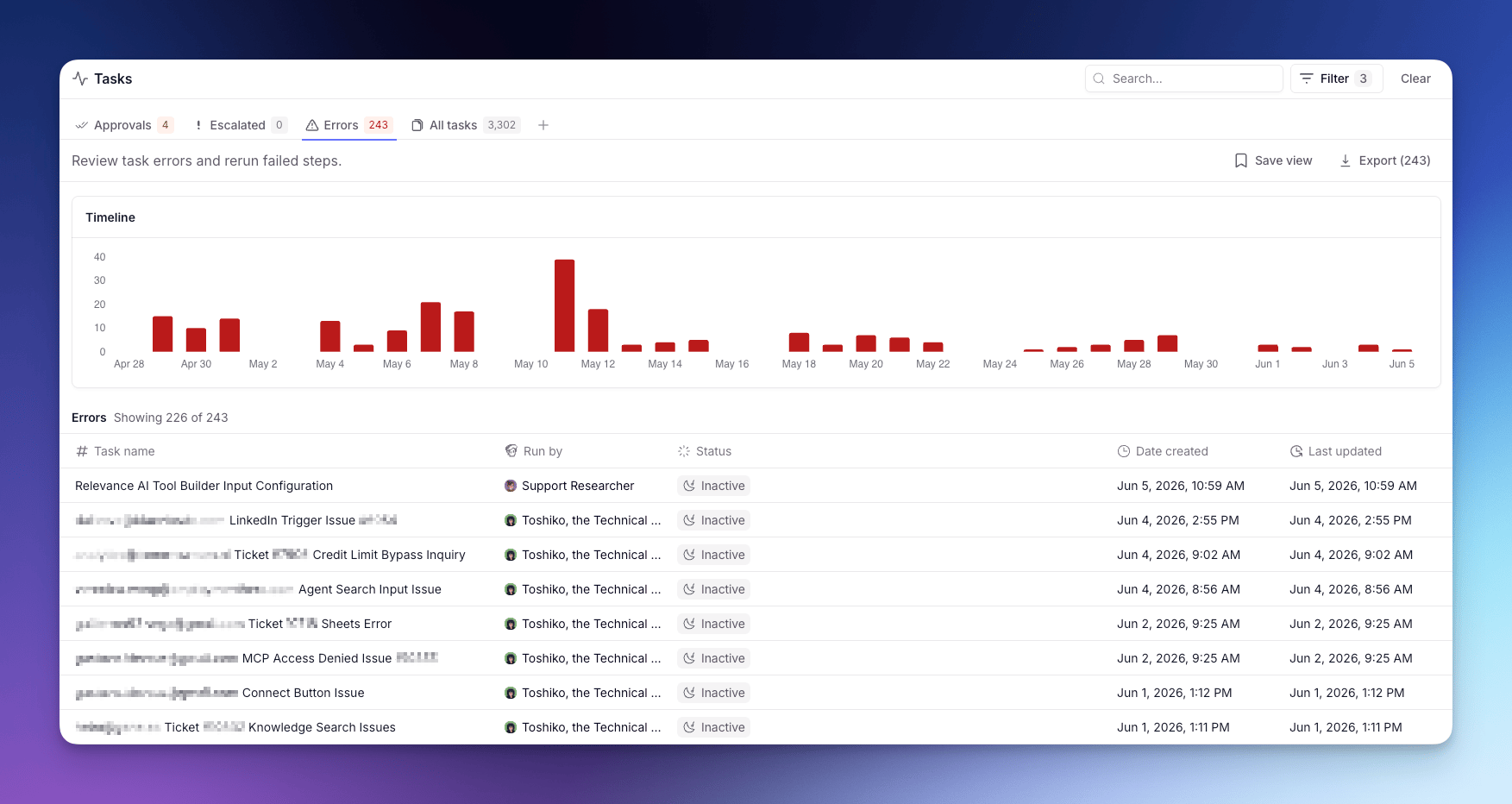 The Tasks page is where you monitor everything your Agents and Workforces are doing: reviewing outputs, approving pending actions, and rerunning failed runs. You can act on a single Task or apply the same action across every matching Task at once.
Tasks from both Agents and Workforces appear here, and the same triage and bulk action flows apply to both.
Each Task is a single run of work (a conversation or workflow) carried out by an Agent or Workforce. For what a Task is and how to read one, see [Tasks](/build/agents/give-your-agent-tasks/task-overview).
## Status tabs
The page is split into status tabs:
* **Approvals** — Tasks waiting on your approval before they can continue.
* **Escalated** — Tasks the Agent paused on to ask you a question.
* **Errors** — Tasks that hit a Tool failure or runtime error.
* **All tasks** — every conversation across your Agents and Workforces.
## Grouping views
Within any status tab, you can switch how Tasks are grouped using the grouping tabs above the Task list:
* **All** — a flat list of every Task across all Agents and Workforces, ordered by recency.
* **By agent** — Tasks grouped by the Agent that ran them, so you can compare load and status per Agent at a glance.
* **By workforce** — Tasks grouped by Workforce. Each Workforce row expands to show its member Agents as sub-rows, giving you a hierarchical view from Workforce down to individual Agent.
The **By workforce** grouping complements the per-Workforce Task view available inside each Workforce builder — use it when you want a single cross-workspace view organized by team structure rather than per-Agent.
### Drilling into an Agent's Tasks
In the **By agent** view, each row represents one Agent. Click the expand chevron on an Agent row to open a nested sub-table of that Agent's individual Tasks.
* The sub-table shows up to 25 Tasks at a time. If more Tasks match the current filters or search, a **Show more** button at the bottom loads the next page.
* Clicking any Task row in the sub-table opens the full Task detail drawer, where you can review conversation history, Tool usage, outputs, and errors.
* Filters and search applied to the parent view carry through to the sub-table, so only matching Tasks appear.
* While Tasks are loading a spinner is shown. If the fetch fails, an error message replaces the list. If the Agent has no Tasks matching the current filters, the sub-table shows "No tasks to show".
## Bulk actions
When you open a Task, the page checks for other Tasks from the same Agent in the same state and surfaces a bottom sheet so you can act on the whole group at once.
Available bulk actions:
* **Approve** or **Reject** pending approvals.
* **Rerun** errored Tasks from the failing step.
A confirmation modal shows how many Tasks will be affected before anything is sent.
A Task with more than one pending approval isn't bulk-actionable and stays one-at-a-time.
The Tasks page is where you monitor everything your Agents and Workforces are doing: reviewing outputs, approving pending actions, and rerunning failed runs. You can act on a single Task or apply the same action across every matching Task at once.
Tasks from both Agents and Workforces appear here, and the same triage and bulk action flows apply to both.
Each Task is a single run of work (a conversation or workflow) carried out by an Agent or Workforce. For what a Task is and how to read one, see [Tasks](/build/agents/give-your-agent-tasks/task-overview).
## Status tabs
The page is split into status tabs:
* **Approvals** — Tasks waiting on your approval before they can continue.
* **Escalated** — Tasks the Agent paused on to ask you a question.
* **Errors** — Tasks that hit a Tool failure or runtime error.
* **All tasks** — every conversation across your Agents and Workforces.
## Grouping views
Within any status tab, you can switch how Tasks are grouped using the grouping tabs above the Task list:
* **All** — a flat list of every Task across all Agents and Workforces, ordered by recency.
* **By agent** — Tasks grouped by the Agent that ran them, so you can compare load and status per Agent at a glance.
* **By workforce** — Tasks grouped by Workforce. Each Workforce row expands to show its member Agents as sub-rows, giving you a hierarchical view from Workforce down to individual Agent.
The **By workforce** grouping complements the per-Workforce Task view available inside each Workforce builder — use it when you want a single cross-workspace view organized by team structure rather than per-Agent.
### Drilling into an Agent's Tasks
In the **By agent** view, each row represents one Agent. Click the expand chevron on an Agent row to open a nested sub-table of that Agent's individual Tasks.
* The sub-table shows up to 25 Tasks at a time. If more Tasks match the current filters or search, a **Show more** button at the bottom loads the next page.
* Clicking any Task row in the sub-table opens the full Task detail drawer, where you can review conversation history, Tool usage, outputs, and errors.
* Filters and search applied to the parent view carry through to the sub-table, so only matching Tasks appear.
* While Tasks are loading a spinner is shown. If the fetch fails, an error message replaces the list. If the Agent has no Tasks matching the current filters, the sub-table shows "No tasks to show".
## Bulk actions
When you open a Task, the page checks for other Tasks from the same Agent in the same state and surfaces a bottom sheet so you can act on the whole group at once.
Available bulk actions:
* **Approve** or **Reject** pending approvals.
* **Rerun** errored Tasks from the failing step.
A confirmation modal shows how many Tasks will be affected before anything is sent.
A Task with more than one pending approval isn't bulk-actionable and stays one-at-a-time.